Showing posts with label freebies. Show all posts

10/8/16

Free Public Domain Images: The New York Public Library

Looking for free public domain images for your blog or ebook?  I have a series of posts dedicated to that treasure hunt (check here).


How to Find Free Public Domain Images at NYPL Site


Today, I'm sharing the resource provided by the New York Public Library at their website.  Here's what you do:

1.  go to their site;
2.  enter your search into the white search box in the top right-hand corner -- but don't click it;
3.  click that little tab and you will get the option to search "only public domain."
4.  if you don't choose that option, never fear.  You can also narrow your search to public domain images by clicking in the left sidebar of your search results.

Not For Everyone - But Great for Some


Now, caveat:  these images aren't for everyone and every subject.  If you're a lawyer writing a blog dedicated to death penalty issues (like I co-author with Terry Lenamon), then this isn't a great find.

However, other niche blogs may find some great stuff.

And ebook covers?  There's some really interesting images here to consider.  For those who might want to find public domain images for uploading into Canva, for instance.  (See my post on using Canva for your covers here.)
.

I found the above image in just a few seconds at the NYPL site.  I like it.  Thurston was amazing, right? 


9/23/16

Google Keep Review: I'll Stick With Evernote, Scrivener, and Padlet But You Might Like It


I'm a sucker for new productivity apps.  Aren't you?  Especially if they're free? Here's my Google Keep experience.  It started a few weeks ago.


.

DottoTech Questions Switching From Evernote to Google Keep

.
First, the backstory.

I subscribe to DottoTech's YouTube Channel.  Over lunch, I like to watch stuff like Steve Dotto's channel on my ROKU-powered TV, having cut the cable several years back.  (Read more on that here.)

So, last month I was chomping away on a deli salad, drinking iced Rooibos tea, and watching YouTube.

Sure enough, I learned something new.  Steve Dotto was comparing Google Keep with Evernote.

Maybe I had heard of Google Keep before, but it didn't stick with me. His question: should I switch to Google Keep?  Whattha?

My Evernote Loyalty


Now, I'm a huge Evernote fan.  I'm not abandoning Evernote.  No way, no how.

Still, I was interested to see what Google Keep could do, since it's got Google's awesome search function capability.  And that's a big, big deal for me.

Why?  Evernote is my research database.  I store stuff there.  My stuff; my clients' stuff; stuff I find online.

Evernote's search function is critical to me finding all that stuff after I've tossed it in there.

The ability to search all around Evernote is one of the big reasons I prefer it to OneNote.  But that's another story for another day.  Back to Google Keep.

How Could Google Keep Help Me?


So, I decided to check out Google Keep.  Give it a test run, see how it could help me be more efficient in my day.

Since I'm getting ready for National Novel Writing Month (NaNoWriMo), I decided to use Google Keep as part of that preparation.

That way, it wouldn't interfere with my standard procedures in my real work.  The stuff that makes me money and pays for my dog's liver treats.

I used Google Keep as a tool to help me prepare for writing an outline to my projected 50,000 word thriller.  This afternoon, I've got some findings to report.

Google Keep Reminds Me of Scrivener's Corkboard and Padlet

.
In using Google Keep, I wasn't reminded of Evernote as much as Scrivener and Padlet.

If you use Scrivener, then you know it has this nifty corkboard feature, where you can move your chapters (or files) around as you like.

Sorta like index cards on a tabletop.  Except Scrivener is allowing me to do this with a huge amount of word count following along behind it.  

No way that Google Keep compares to Scrivener in this function.

And, if I want to do this rearranging outside of Scrivener, I'll use Padlet.  It's easier.  And I can keep all my stuff together on one topic there in a separate "padlet" for reference.

I like Padlet.  I use it.  It's fun.

Check out the Padlet Gallery for examples of how much fun this tool can be (lots of teachers use it).

I like Padlet better than Google Keep for brain dumps and brain storming.  


Bottom Line:  Meh.


I didn't NOT like Google Keep.  It was nice. It just doesn't serve me as well as the tools I already have in my tool belt.  So, for me Keep is not a Keeper.

Maybe it is for you, Dear Reader.  It's fun to test drive, anyway ....


2/10/14

Hashtag Tip: Hashtagify.Me is Great Help in Choosing Great Hashtags (for Lawyers and Everyone Else)

hashtag, number sign, public domain image
Parents and children don’t always speak the same language, of course. Sheldon Cooper and Penny can get confused in their conversations, too. Not everyone communicates with the same vocabulary, which is fascinating and wonderful except when you’re considering hashtags in social media.

Hashtags have to be somewhat of a common denominator among lots of folk's vocabulary or they’re not doing much good.

Suffering Hashtag Frustration?


Which brings me to a conversation I had with a frustrated client a couple of weeks ago who is a lawyer dipping his toe into Twitter. Hashtags? If he had any hair left on his head, it would be gone now just over his frustration of finding hashtags to include with his tweets.

Hashtags are Important to Twitter and Google Plus and Facebook and More


One of the hurdles lawyers face with Twitter or Google+ (when they decide to delve into social media at all) is that lawyers think like lawyers. I remember being told by a UTLaw professor (Treece, Torts) that the theme of law school wasn’t to learn the law, it was to learn to think like a lawyer. To think differently when I left the building than when I first entered. Every lawyer out there has heard the same thing, countless times. “Thinking like a lawyer” - the reason for the Socratic Method, right? (Or at least one of them.)

It’s true, too. Lawyers do think differently, and this is great when considering all the potential ramifications of a contract being negotiated or when negotiating the settlement of a wrongful death case - but it’s sometimes problematic when attorneys are hunched over their keyboard, deciding what terms they should use to index their social media post or tweet.

Hashtags are tools you can use to index your tweet or post to help others find your content even if they aren’t following you, aren’t in your community, etc. Hashtags are helpful.

In indexing their social media with hashtags, lawyers may toss off a couple of words with an “#” in front and think “that’s that.” However, those hashtags may not be as advantageous to the attorney as other choices can be.

Lawyers tend to use words with which they are familiar, or which apply to their particular case or deal, rather than stopping to consider that these words may not be the best choice in drawing potential readers to their content (even sophisiticated ones).

Hashtags, after all, are just ways to index what you’ve written so others can find what you’ve shared. Consider these alternatives: Litigation vs. Lawsuit; Coverage vs. Insurance; Mortgage vs Loan; Housing vs. Property or RealEstate; Accident vs. Crash.

Lawyer or not, anyone using hashtags should be choosing words that they believe are familiar to their intended reader.  If you are writing for teenagers, then consider what words will work best as hashtags for them, not the words that work best for you and your peers.  You get the idea.

Try Hashtagify.me 


One option? Synonyms, sure. However, there’s a free service online that can help you find hashtags to use as well as discovering trending hashtags and more. It’s Hashtagify.me - try it and see if what your chosen hashtags provide as options when you input them into the Hashtagify.me word machine. (By the way, Hashtagify.me has the Highest Trust Rating at ScamAdviser).

1/15/14

Tool Tip: WordWeb is Free Offline Dictionary and Thesaurus That Works Great With Scrivener

Admittedly, my favorite thesaurus is my Old School desk copy with its duct tape and stickies and notes written in the margins.  However, I don't want to carry this thing with me everywhere I go, which means I need a good on-screen Thesaurus and Dictionary.

If I'm online, then Thesaurus.com and Dictionary.com work just fine.  However, if I don't want to open up an internet browser just to check for a synonym or a definition, I am stuck.  Or I used to be.

WordWeb Review:  I Like It.  I Really Like It. 

For the past week or two, I've been trying out WordWeb it's working out well.  Best thing?  It hangs out on my desktop toolbar, and I can access it even when I'm not online.

Which is great for many reasons including these two:
  1. WordWeb offers more to me than Scrivener does because Scrivener (a) has no internal dictionary or thesaurus, which I miss from my switch to Scrivener from Word; and (b) I'm not forced to go online via the Scrivener tool to access a thesaurus.
  2. If I'm writing, then I'm focused on the task at hand.  It's really (REALLY) tempting sometimes to go check email or jump onto Pinterest for a quick looksie when Scrivener brings me online to use a thesaurus.  WordWeb protects me from this temptation.  

Now, is WordWeb as great as my trusty print version?  Nope.  

It's a nice tool, though, and I think you might find it helpful, too.

Plus, the price is right.  It's free.

Check out more at CNET -- where WordWeb has been rated "spectacular" by the CNET editors and has received a five-star rating by over 1200 users.


1/6/14

Public Domain Images: British Library Shares 1,000,000 Free Public Domain Images From Book Illustrations

Recently, the British Library uploaded 1,000,000 public domain images (that's right: 1,000,000) that their hard-working librarians have taken from books published between 1600 and 1900 A.D.

They've all been uploaded to Flickr.

Go to Github to get the manifest.

The images have been collected as part of the British Library's "Mechanical Curator."

Here are a couple of examples:


Note:  You may have some hurdles in getting the image from Flickr to your blog platform.  Hint:  choose to "share" the image in the right sidebar of the Flickr page.  


10/8/13

Google Constitute Project -- Amazing Stuff. I Love Google So Much.

Google is great and I sure hope they're not secretly evil.  Yes, I know their motto is to do no evil, but the Bible warns us that Satan masquerades as an angel of light - and I sure hope Google isn't deceiving me (and you).  All that brouhaha over in Europe over Google's privacy and security issues (France may be imposing fines on Google shortly over storage concerns, for example) does give one pause.

Then, just when I start really thinking about Google and wondering about all the bad juju I'm reading about them, well -- it's just like my first husband and what I learned later were his "guilt gifts."

Google up and launches Constitute for me.  Well, for everyone, of course.

And I'm back dancing around and all happy happy happy with Google again.  I'm so easy.

It's not enough that I love Google Scholar.  (Though I'm really, really ready for statutes to be included there, too.)

Nope.  Now, Google has created a site where I can surf around through various national constitutions, either by country or by topic.

It's fascinating.  For example, go search topics for "shari'a" and you'll get three constitutions:

Bahrain 2002, Libya 2011, and Somalia 2012.

Read them.  They're not that difficult to read -- they've all been translated into English.  (And if you don't know about shari'a law, then rectify that quickly, here.)

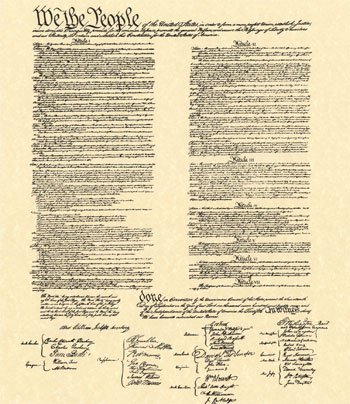
Then read ours.  The U.S. Constitution.  Remember this?
We the People of the United States, in Order to form a more perfect Union, establish Justice, insure domestic Tranquility, provide for the common defense, promote the general Welfare, and secure the Blessings of Liberty to ourselves and our Posterity, do ordain and establish this Constitution for the United States of America....
I love Google for so many things.  Its dedication to quality.  Its dependability.  Its zeal for moving forward and developing new things.  And I think I love Google because it exemplifies something that I believe is critical for every human being: a love of learning.

5/31/13

How I Use Feedly, Pocket, and Evernote to Sort Through 1000s of Articles and Posts Each Day

Part of my work involves research and part of that research includes keeping up to date with news stories and fresh articles on a variety of topics.  I can easily cull through 1000 - 2000 headlines each day, and after a couple of clients asked how to do this for themselves, I thought I'd share it with you, Dear Reader.

1.  Freeware I Recommend:  Feedly, Pocket, and Evernote

First, I use free Windows versions of Feedly, Pocket, and Evernote.  Get them.  Why these three?  They work well - you can't beat the price - and they are very user-friendly.  Fast, fun tools that do the job.

2.  Set up Feedly for a Fast Read.

I have set up Feedly so the view is "headlines-only" for my research stuff.  Feedly calls this its "title-only" view, choose it for your particular collection by clicking on the far-left option in the row of images in the Feedly home page's top right corner.

I have some collections where images appear -- food, interior decorating -- but that's personal, fun stuff.  Images slow me down when I'm going through lots of content.

3.  Set up Feedly Topics That Make Sense.

One thing I watch are the Top 10 Blogs as determined by Technorati.  Why?  It helps me understand what people are wanting to read, both for myself as well as for my clients.  So, I have a Feedly collection that is titled "Top 10 Blogs" and while the feeds within this collection are rather divergent, the overall theme makes sense to me -- and can be quite revealing when a common thread starts to appear in very different sources.


Above: Here is a screen shot of my Feedly feed collection of "Top 10 Blogs" today.


4.  Read The Headlines and Pick Only Things Worth More of Your Time.

Writers may write headlines or blog post titles that they think are fun, maybe witty - but if that title or headline doesn't give me information on what the content of the article (post) itself provides, then I don't have time to investigate.  Title your post "Whoa" and I'm gonna surf right by it.  Title your post "Whoa, Supreme Court surprise ruling in copyright case" and I'm interested in learning more.  Helpful hint: Be selective here. Don't pick more than you need.  


Above:  I've chosen one article here, published in Ars Technica, to read in more detail. 


5.  Pull the interesting article from Feedly into Pocket.

Using Google Chrome, I right click on the Feedly headline and choose the option "Save to Pocket."  I don't go into Pocket, I continue through Feedly until I've completed going through all my Feeds and have reached the pretty blue Feedly screen that tells me I'm all done.


6.  Once Feedly has been read through, then I go to Pocket.

After I've read through say 500 article titles (headlines) in Feedly, I've sorted through them so I only have a handful to consider in Pocket.  I close Feedly, move to Pocket.  Here, I read through the blurbs provided by Pocket and decide if the article bears further time investment.

I do this for all my Pocket saves.  In Pocket, I will organize these saves by Tabs.  For short term use, say an article to send with some discussion to a client, I tab the article with the client's name and in my afternoon email session, I'll pull it from Pocket and forward it along.  For long term use of an article, I move the article to Evernote.


Above:  Here is the Ars Technica article saved to Pocket after I read its title in Feedly.

7.  Articles warranting inclusion in my research stacks get moved from Pocket to Evernote.

There will be a few articles that I think are good enough to include in my research stacks.  These articles get clipped using the Evernote WebClipper into Evernote.


Above:  Here is the same Ars Technica article as shown in Pocket being clipped into Evernote.

Initially, I put them in a big "Pocket Stuff" notebook in my Evernote library.  When I get to my research block of time, one of the first things I do is organize that Pocket Stuff notebook and move things to their proper notebook in my Evernote world.

For instance, I have an ongoing research project on the drug cartels that have entered South Texas.  I may move something from my Pocket Stuff notebook to the "STxDrugCartels" notebook and feel comforted that when I get back to that project, I've already got accumulated news stories, articles, etc. sorted into the proper folder for my review.

Whew.  Hope this helps you.

2/15/12

U.S. Supreme Court Throws Public Domain Under the Bus: Copyrights Can Be Applied to Longstanding Public Domain Works Under Berne Convention

In the often-confusing area of copyright, there was one bright line: works that had entered the public domain.  Find an image or a quote within the public domain and you never got to the question of copyright:  are you infringing?  is your work fair use?  It was black and white, night and day: once a work entered the public domain, there were no copyrights to respect - the copyrights had evaporated, and the works were free for anyone to use at any time.  Sweet. 

Until now, because that bright line just got fuzzy.  The United States Supreme Court has just ruled that Congress can take works in the public domain and slap them with a copyright.  Again.  This is true even if the work has been floating around in the public domain for years and years. 

Golan v Holder

Read the full opinion in Cause No. 10-545 before the United States Supreme Court, Golan et al v. Holder, -- U.S. -- (2012) here.  It's a six to two decision; Ginsburg writes for the majority; Breyer and Alito dissent; Kagan recused herself. 

Berne Convention Implementation Act of 1988

Why?  Seems the High Court believes that the United States of America must comply with a trade agreement entered into at The Convention for the Protection of Literary and Artistic Works, and signed at Berne, Switzerland on September 9, 1886.  You can read that treaty online here. 

That's because Congress already passed a federal law (the Berne Convention Implementation Act of 1988), stating that the United States must comply with "all acts, protocols, and revisions" of the  Berne Convention.  The Uruguay Round Agreements Act of 1984 amends 17 U.S.C. 104A, 109(b), and adds chapter 11 to title 17 and section 2319(a) to title 18. 

If you check the deal that is known as "the Berne Convention,"  you will find an agreement (treaty) between several nations around the world, copyrights are to be respected as long as a copyright legally exists in any of the countries that are signatories to the Berne Convention.

Read the list of countries that have signed the Berne Convention here.  Right now, there are 165 nations participating in the treaty.   

Which means that work you may have used legally on your blog - say, an excerpt from something written by Tolkein - may no longer be free for your use as public domain and now, subject to copyright.  


1/4/12

Sources of Info for Your Blog Posts: Site Organizing News by State

Here’s a site that I recommend to my clients for their blogging and which I’ve used myself for several years now:  US News by State.
It not only provides news stories that are breaking in the various states, it also lists the larger cities or metropolitan areas within those states.  That’s great but it gets better than that: within these lists, the various news stories (hyperlinked to their sources) are provided outlet by outlet. 
For example, within the Dallas-Fort Worth metroplex, the top news stories are listed (with time and date) for:
  • Dallas Business Journal
  • Dallas KTVT
  • Dallas KXAS
  • Dallas WFAA
  • Fort Worth Star Telegram (three versions)
There’s also a search feature.
Of course, not all media sources are included here.  The Dallas Morning News is absent from the above list, and it’s a major player in that market.  If I were writing about something dealing with Dallas or Fort Worth or the surrounding area, you betcha that I would also go and check out the latest at the Dallas Morning News site.
What Do You Do With the News Stories?
Once you’ve got a list of news stories, then you’ve got a springboard for your next post.  It’s great because it’s local and local coverage is excellent for most blogs. Especially law blogs.
However, for any blogger, news stories can be something that you can hyperlink within your post as you discuss something relevant to that post.
For instance, I coauthor a blog with Terry Lenamon that deals exclusively with the death penalty.  In the Fort Worth Star Telegram today there is a story by Anna Tinsley entitled “Texas still top state for the death penalty.” 
I will read this story for a possible link within a post on Terry Lenamon on the Death Penalty.  Terry’s not in Texas, so it would serve only as a secondary link – Texas lead in the death penalty stats is a bigger story in Fort Worth than in it is Miami.  This story may be helpful to fuel the fires for how Florida ranks in the death penalty, what Florida’s Powers that Be are doing in 2012 about the death penalty, etc.
You get the idea. 

1/2/12

Could Evernote Help You As You Write Your Blog Posts? I Think So.

A software guru that I respect recommended Evernote to me last month as a time-saving bit of software and I’ve been working with it for around a month now. 
I like it, maybe you will too.  You’ve got to like the price:  the basic version is free.   
So What is Evernote?
Evernote is software that you download onto your hard drive and it pops up in your internet search engine:  IE, Firefox, Chrome, whatever.  There’s also a little icon on your desktop; all this coordinates to provide you a platform for organizing stuff you find on the web.  You can save different things: the url for the webpage; an excerpt or article on that page; or you can store the complete page from its banner ads to its boilerplate footers.
Of course, it also works on your phone and your other stuff too.  Sync smart.
For the description the Evernote folk provide, go here.
What Have I Found?  It’s Easy and Fast, and There’s a Size Limit for the Free Version
I’m still trying out all its bells and whistles but I know Evernote is a keeper, and for those who write blog posts regularly, I think it’s a good tool to have in your toolbox, too. 
I’m not using the notes feature, but I have been routinely clicking on the green elephant to save stuff that I find on the web that I want to use in future blog posts for myself as well as forwarding to clients for their consideration in their posting. 
For example, I don’t have a lot of interest in blogging about the latest developments in the legal battles involving Florida’s disgraced attorney, David J. Stern and his foreclosure-focused law firm, but I have a client that is very interested in this stuff.  When I read an interesting article about the latest acts that the Florida AG was undertaking, I thought this might good for my client and quickly hit the elephant button.  Saved the url. 
Zip zip. 
No bookmarking.  Hate to clutter my bookmarks with this stuff.
No notes either on paper or on my PC’s sticky notes or on my iGoogle page.
I was back surfing almost immediately.
Bottom line, I am finding Evernote fast and easy to use for saving web stuff that I might want to use later.  The little button is the big help.
For more on Evernote, check out their descriptions of its various functions as well as watch their cool videos on things like Evernote Clearly, Evernote Food, Evernote Hello, Evernote Peek, and other freebies they offer.  
For what other users think as well as techie experts, check out the reviews of Evernote on CNET and AppBrain.
Oh, and Evernote was one of the top apps recommended by the New York Times last year – if you want to read old news. 

11/7/11

Google Alerts, Social Mention, and Spiral 16: Tracking Topics and Trends on the Web

Hopefully, you are aware of Google Alerts, a tool provided by Google, for free (as always) that notifies you when your name, your product, or just about anything under the sun is being discussed online. Google Alerts will let you know if your name has made the local news, for example, or if your daughter's soccer team got mentioned for winning regionals.

There are other sites that can help you keep track of things, too - Google isn't alone out there. Here are two for you to try:

1. Spiral 16

2. Social Mention.

Both of these services provide similar information to Google Alerts, but they target social media and they give more info to you than just links. Check them out, they are useful tools for you.

How?  Names are just one thing to search.  I have alerts set up, for example, under the phrase "death penalty" because I co-author a blog on capital punishment. (FYI, I also have an alert set up for that topic at Google Scholar, it's proven to be very helpful, too.)

6/29/10

Twitter Nuts & Bolts 4 Lawyers: A How-To Guide for Law Firms - My New Free E-Book

Twitter Nuts & Bolts 4 Lawyers: A How-To Guide for Law Firms is my first complimentary e-book.  And yes, complimentary is a nice word for FREE.

Ten Step Twitter Primer for Lawyers. 
I'm offering this short primer on how attorneys and law firms can get started on Twitter for free on the web; you can download it or print it here.

Why bother with Twitter? 
Not only are leading law firms already adopting sophisticated tweet strategies as part of their online marketing campaigns, more and more law firm clientele are using Twitter in their daily operations.  Jackson Walker, Fulbright, and Vinson & Elkins are just three big firms that are heavily involved in the Twitter Universe.  Large corporations like Ford Motor Company actually employ workers to do nothing but keep up with daily social media conversations (@ScottMonty). 

Why read this e-Book?
Many attorneys and law firms still have not opened a Twitter account (much less more than one -- Jackson Walker had 14 at last count).  And while there are numerous materials available online and in print that explain advanced communication methods and marketing techniques using Twitter, there are very few that take a professional step by step through the process of opening an account, adding the appropriate background, finding followers, and initiating dialouge via Twitter. 

Be Tweeting in 15 Minutes or Less.
Which is exactly what Twitter Nuts n Bolts 4 Lawyers: a How-To Guide for Law Firms does.  From Step 1 (Join Twitter) to Step 4 (Plan Your Tweeting Strategy) to Step 10 (Scheduling Tweets), this e-book gives lawyers the basic information they need to become proficient on Twitter, in a time-efficient way. 

Hopefully, my short (12 page) complimentary e-book will help meet that need.  Please feel free to read and use Twitter Nuts n Bolts 4 Lawyers: A How-To Guide for Law Firms with my compliments.

11/6/07

Read Print is a Great Find

Read Print is a great site -- it offers lots of free access to classic works of literature, plus the complete works of Shakespeare. An added feature is a list of articles covering a range of writing-related issues: what is a sonnet? how to write a magazine article? Lots of fun, and there are coupons too! Nice.

No compensation has been received for this review.