Showing posts with label Great Finds. Show all posts

10/8/13

Google Constitute Project -- Amazing Stuff. I Love Google So Much.

Google is great and I sure hope they're not secretly evil.  Yes, I know their motto is to do no evil, but the Bible warns us that Satan masquerades as an angel of light - and I sure hope Google isn't deceiving me (and you).  All that brouhaha over in Europe over Google's privacy and security issues (France may be imposing fines on Google shortly over storage concerns, for example) does give one pause.

Then, just when I start really thinking about Google and wondering about all the bad juju I'm reading about them, well -- it's just like my first husband and what I learned later were his "guilt gifts."

Google up and launches Constitute for me.  Well, for everyone, of course.

And I'm back dancing around and all happy happy happy with Google again.  I'm so easy.

It's not enough that I love Google Scholar.  (Though I'm really, really ready for statutes to be included there, too.)

Nope.  Now, Google has created a site where I can surf around through various national constitutions, either by country or by topic.

It's fascinating.  For example, go search topics for "shari'a" and you'll get three constitutions:

Bahrain 2002, Libya 2011, and Somalia 2012.

Read them.  They're not that difficult to read -- they've all been translated into English.  (And if you don't know about shari'a law, then rectify that quickly, here.)

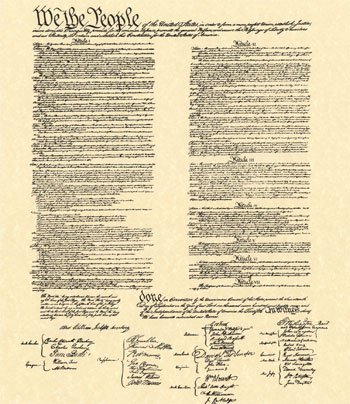
Then read ours.  The U.S. Constitution.  Remember this?
We the People of the United States, in Order to form a more perfect Union, establish Justice, insure domestic Tranquility, provide for the common defense, promote the general Welfare, and secure the Blessings of Liberty to ourselves and our Posterity, do ordain and establish this Constitution for the United States of America....
I love Google for so many things.  Its dedication to quality.  Its dependability.  Its zeal for moving forward and developing new things.  And I think I love Google because it exemplifies something that I believe is critical for every human being: a love of learning.

5/31/13

How I Use Feedly, Pocket, and Evernote to Sort Through 1000s of Articles and Posts Each Day

Part of my work involves research and part of that research includes keeping up to date with news stories and fresh articles on a variety of topics.  I can easily cull through 1000 - 2000 headlines each day, and after a couple of clients asked how to do this for themselves, I thought I'd share it with you, Dear Reader.

1.  Freeware I Recommend:  Feedly, Pocket, and Evernote

First, I use free Windows versions of Feedly, Pocket, and Evernote.  Get them.  Why these three?  They work well - you can't beat the price - and they are very user-friendly.  Fast, fun tools that do the job.

2.  Set up Feedly for a Fast Read.

I have set up Feedly so the view is "headlines-only" for my research stuff.  Feedly calls this its "title-only" view, choose it for your particular collection by clicking on the far-left option in the row of images in the Feedly home page's top right corner.

I have some collections where images appear -- food, interior decorating -- but that's personal, fun stuff.  Images slow me down when I'm going through lots of content.

3.  Set up Feedly Topics That Make Sense.

One thing I watch are the Top 10 Blogs as determined by Technorati.  Why?  It helps me understand what people are wanting to read, both for myself as well as for my clients.  So, I have a Feedly collection that is titled "Top 10 Blogs" and while the feeds within this collection are rather divergent, the overall theme makes sense to me -- and can be quite revealing when a common thread starts to appear in very different sources.


Above: Here is a screen shot of my Feedly feed collection of "Top 10 Blogs" today.


4.  Read The Headlines and Pick Only Things Worth More of Your Time.

Writers may write headlines or blog post titles that they think are fun, maybe witty - but if that title or headline doesn't give me information on what the content of the article (post) itself provides, then I don't have time to investigate.  Title your post "Whoa" and I'm gonna surf right by it.  Title your post "Whoa, Supreme Court surprise ruling in copyright case" and I'm interested in learning more.  Helpful hint: Be selective here. Don't pick more than you need.  


Above:  I've chosen one article here, published in Ars Technica, to read in more detail. 


5.  Pull the interesting article from Feedly into Pocket.

Using Google Chrome, I right click on the Feedly headline and choose the option "Save to Pocket."  I don't go into Pocket, I continue through Feedly until I've completed going through all my Feeds and have reached the pretty blue Feedly screen that tells me I'm all done.


6.  Once Feedly has been read through, then I go to Pocket.

After I've read through say 500 article titles (headlines) in Feedly, I've sorted through them so I only have a handful to consider in Pocket.  I close Feedly, move to Pocket.  Here, I read through the blurbs provided by Pocket and decide if the article bears further time investment.

I do this for all my Pocket saves.  In Pocket, I will organize these saves by Tabs.  For short term use, say an article to send with some discussion to a client, I tab the article with the client's name and in my afternoon email session, I'll pull it from Pocket and forward it along.  For long term use of an article, I move the article to Evernote.


Above:  Here is the Ars Technica article saved to Pocket after I read its title in Feedly.

7.  Articles warranting inclusion in my research stacks get moved from Pocket to Evernote.

There will be a few articles that I think are good enough to include in my research stacks.  These articles get clipped using the Evernote WebClipper into Evernote.


Above:  Here is the same Ars Technica article as shown in Pocket being clipped into Evernote.

Initially, I put them in a big "Pocket Stuff" notebook in my Evernote library.  When I get to my research block of time, one of the first things I do is organize that Pocket Stuff notebook and move things to their proper notebook in my Evernote world.

For instance, I have an ongoing research project on the drug cartels that have entered South Texas.  I may move something from my Pocket Stuff notebook to the "STxDrugCartels" notebook and feel comforted that when I get back to that project, I've already got accumulated news stories, articles, etc. sorted into the proper folder for my review.

Whew.  Hope this helps you.
3/30/13

Infographics for Lawyers: a Great Addition to Your Law Firm Web Site or Blawg

Infographics (informational graphics) are so much fun, and sure they are getting to be pretty darn trendy right now.  (Just go over to Pinterest and search for "infographics" to find all sorts of wonderfully creative infographics on all sorts of topics.

Thing is:  infographics are great tools for lawyers to use to educate readers about all sorts of issues.  Law firms can place infographics into their websites, their blogs (blawgs), their newsletters, even in client emails.  (I'm not sure about using them in motions or briefs yet - but if I were a judge, I'd welcome the innovation.)  

Here, for example, is a great infographic from DailyInfographic that provides details on the impact of the Family and Medical Leave Act (FMLA) upon employers (click on it or hit Ctrl + a couple of times to enlarge the image):


For more information on infographics, check out these online sources:

Daily Infographics 

To learn more about creating original infographics for your site, for free, see:


11/14/11

Why I Use Google Scholar In My Blog Posts

The more I use Google Scholar, the more I like it.  I think you will, too.  I always use Google Scholar, for example, to hyperlink cases or statutes or law review articles in blog posts because:

1.  it's free;
2.  it's easy for readers to access (no subscription hurdle);
3.  it's reliable;
4.  (best of all) within the document, Google Scholar hyperlinks citations for ready reference; and
5.  there's a Shepardizing of sorts provided, too.

For example, click here to check out New York Times v. Sullivan, 376 U.S. 254 (1964) on Google Scholar.  Nice, huh?

6/14/11

Tip on Finding the Time To Write That Blog Post

Blog posts are more than tweets or likes - you have to find a topic and spend some time writing at least a paragraph or two.  This is true when you're writing a personal journal type of blog.  If you're writing another kind of blog -- informational, research-oriented, etc. then it means even more involvement.

Which I discuss with my lawyer clients regularly because if it isn't a panic on finding something to write about, it's about finding the time to write the post (let's not even get started on the comments).  Here's something that helps: a timer.

That's right.  A timer.  Any old kitchen timer will do, as will the one on your phone or your watch (ahem).  However, here's one that I really like because it appears onscreen at the bottom of your window:  FocusBooster.

FocusBooster is free.  It's a part of a larger time management technique that you may find helpful (many do) but for now, I have to say that downloading FocusBooster and having that little timer bar counting down the seconds as you are typing away keeps you ... well ... FOCUSED.

It alarms at 25 minutes.  Then you get a 5 minute count.  Once that dings, you've got to restart FocusBooster.

The beauty of FocusBooster is that if you play your cards right, you'll hit that green square and get going, and before 25 minutes are up, voila!  Another post on your blog.

Try it.  According to Lifehacker, it's the most popular software of its kind out there right now. 

2/4/11

Testing Windows Live Writer With This Post

Well, I’m trying out Windows Live Writer here, not sure if I’m going to like this or not.  Another ribbon on the top – geez louise! 

However, the ability to type here and then have the post automatically placed into the blogging platform might help me be more efficient, and perhaps help me to post more often.

Checking links now.  Here’s my simplicity blog. 

One thing – I cannot choose categories here – no indexing of posts with this remote function.  Wrong: after I published this post and returned to WLW, a window popped up with my Labels Index list.  So, you can choose the Blogger categories with Windows Live Writer. 

Well, that’s enough text.  Let’s see how this looks as a published post. 

My call: I like this.  I may end up liking this a lot. 

12/29/07

Great Finds: Online Backup - I Love MozyPro


After years of steadfastly remaining loyal to backup solutions that I could hold in my hand - but which proved time-consuming and frustrating and annoying - I gave in.

I investigated online backup services, where you send encrypted copies of your files to be stored on their servers, and chose MozyPro.

I love MozyPro. It's easy to install. It will backup daily. Hourly. Whenever I tell it to do so. Quietly, in the background, it's protecting me right now.

And, if I want to see what's been stored and when, I just hit the little icon in the toolbar, and I see the long list. There are my emails. There are my Word documents. There is a spreadsheet.

PLUS - and this has to be the best part - if I get confused or scared or have a question, I can call and speak with a real, live human 24/7. 365 days a year. FOR FREE.

And, yes! One that speaks English as their first language. One who is patient and kind and knowledgeable, not a snoot doing his best David Spade impression.

Oh, and price. PRICE!! I'm paying less that $15/month for 20GB of storage.

I love MozyPro. So did lots of impressive reviewers, and I think you will, too.

(There's also a free version, but I'm not sure what bells and whistles you get tho I do know there's no 24/7/365 technical support.)

11/6/07

Read Print is a Great Find

Read Print is a great site -- it offers lots of free access to classic works of literature, plus the complete works of Shakespeare. An added feature is a list of articles covering a range of writing-related issues: what is a sonnet? how to write a magazine article? Lots of fun, and there are coupons too! Nice.

No compensation has been received for this review.

11/5/07

Writer Lawyer Tip: Great Find - Natural Reader

I use Natural Reader all the time. I use the free version, with the voice that is far from human-sounding. In fact, it sounds so much like HAL that I am always tempted to type the lyrics to "A Bicycle Built for Two" just for a grin ....

Remember that scene from the movie? Dave ... what are you doing, Dave ....

Okay, fine. Look, Natural Reader gives a final, verbal edit before I send the draft out. It's a big help, and I thought I'd share that with you today.

10/13/07

Stickies - Fabulous Freeware by Tom Revell

Tom Revell at Zhorn Software is a friend I've never met.

His Stickies freeware is a fabulous find as well as an award-winning bit of software. It gets Five Stars from users and reviewers alike.

The image shown above is directly from the Zhorn site -- it shows how you can alter the colors and fonts as you prefer. The actual stickies can be sized to fit your screen preferences, of course -- and they can be stacked, or hidden, unlike the example shown above. No, your screen need not be covered with stickies - these things are a help, not a hindrance!

Not only does Stickies 6.0 allow me to place virtual stickies on my computer screen, but it gives me an alarm function as well. I can share stickies with friends. I can hide them, make them opaque, attach them to specific files, and schedule them to open only when I need them.

Tom Revell describes his product this way:

"Stickies is a PC utility I wrote to try to cut down on the number of Post-It notes I was leaving stuck to my monitor. It is a computerised version of those notes.

"The design goal behind Stickies is that the program is small and simple. Stickies will not mess with your system files, or write to the registry. Stickies stores all information in a single text-based ini file.

"Stickies will never support animated dancing figures, or play "Greensleeves". They are instead yellow rectangular windows onto which you can put some text notes. Once created, they will stay on screen until you take them away. Just like a real sticky piece of paper."


I can't recommend this program enough - it's a Must Have, to quote one of the User Reviews at Snapfiles.

For reviews (all Five Star), see: FreewareGenius, Snapfiles, Softsea, CNetDownload.com, VersionTracker.