7/29/13

Public Domain Infographics: Where to Find Free and Informative Graphics for Your Web Site or Blog

Infographics are hot these days, and for good reason.  A good infographic ("informative graphic") is more than just an image, a piece of clip art, or a photo: it's a tool that educates, even entertains, the reader.

Infographics are Copyright Protected - Unless They're Not

Thing is: there are lots of infographics out there on the web that are great, but their creators haven't released the copyright to their work.  Use those infographics on your site or blog without the creator's okay (and fee) at your own risk of an infringement claim -- or at the very least, the embarrassment of receiving and having to respond to a cease and desist letter.

Two options for you if you don't want to pay for the design: build your own infographic (it's pretty easy and can be free) or find a public domain infographic on the internet to use.

For how to build your own infographics, check our my earlier post.

Finding Public Domain Infographics

For locating free public domain infographics, think of places on the web where they have no expectation of copyright.  Like .gov sites - the government's infographics aren't protected by copyright and often government sites are publishing infographics in the hope that you will share them with your readers.

Hint:  Go to Google Images and type in a search phrase related to your subject matter, including the word "infographic."  Next, search through the results for infographics appearing on .gov web sites; go to the site itself and confirm that it is an image within the public domain.  Eureka! You've found your public domain infographic.

Another suggestion: sites where the creator has released his or her copyright in order to promote their work.  (Wikimedia Commons is a good place to find public domain images but not so much public domain infographics at this point.)  This may be a graphics design site, or an individual artist's portfolio page.

Here, it may be in the public domain or you may need to credit the infographic to the creator and perhaps provide a link to their site, but they won't be asking you for payment.  The best bet is to find an infographic that fits your needs and email the creator asking if he or she is willing to have you publish their work on your site at no charge if you give them credit / linkage.

For a few public domain infographic sources, check out:

  1. Department of Homeland Security (often provided with news releases)
  2. Centers for Disease Control  (search among the various issues for infographics)
  3. U.S. Census Bureau
  4. NASA
  5. Office of the Governor of your state (often provided with news releases or with blog posts).

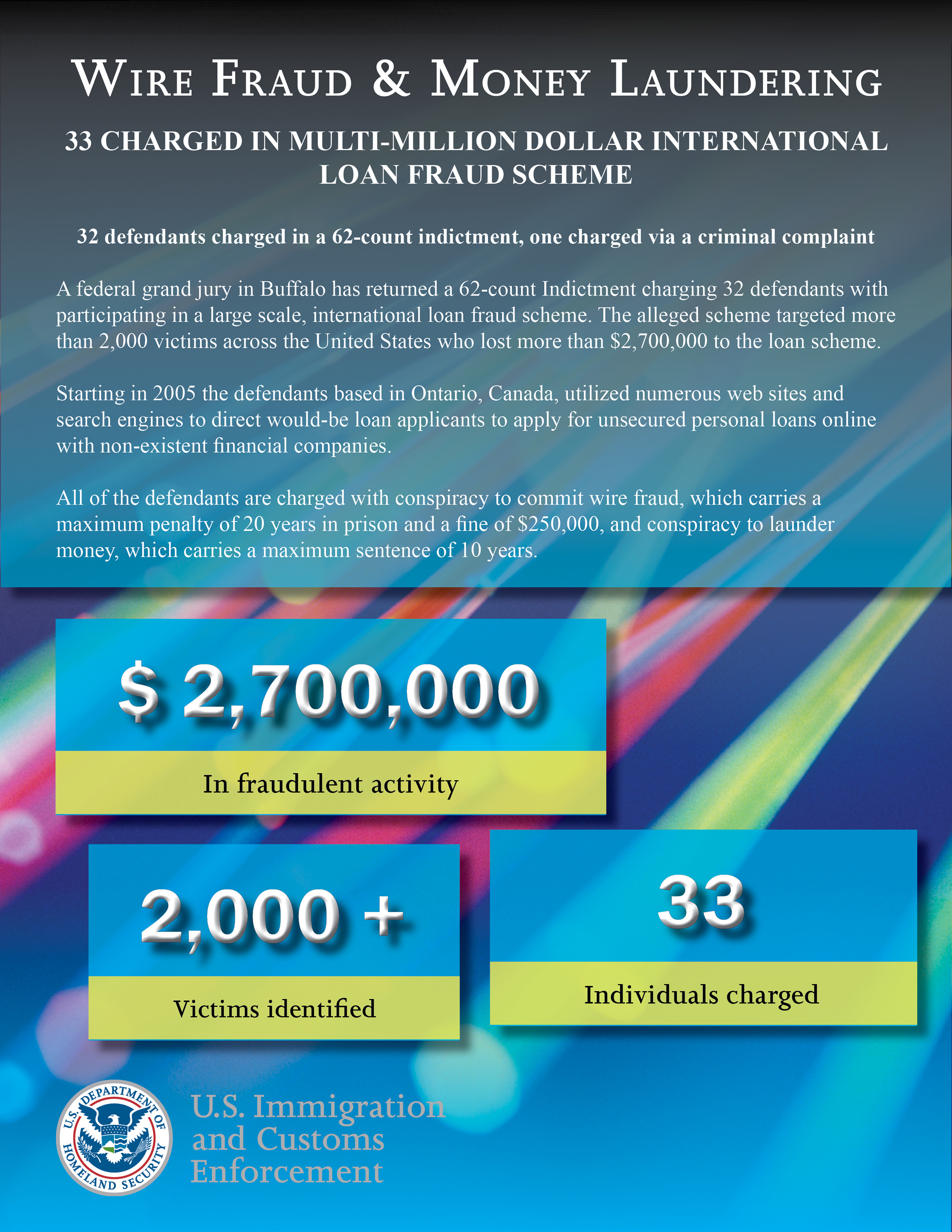
Here is an example of a federal infographic that accompanied news of a Homeland Security financial felony bust in New York where the grand jury came back with indictments:


5/31/13

How I Use Feedly, Pocket, and Evernote to Sort Through 1000s of Articles and Posts Each Day

Part of my work involves research and part of that research includes keeping up to date with news stories and fresh articles on a variety of topics.  I can easily cull through 1000 - 2000 headlines each day, and after a couple of clients asked how to do this for themselves, I thought I'd share it with you, Dear Reader.

1.  Freeware I Recommend:  Feedly, Pocket, and Evernote

First, I use free Windows versions of Feedly, Pocket, and Evernote.  Get them.  Why these three?  They work well - you can't beat the price - and they are very user-friendly.  Fast, fun tools that do the job.

2.  Set up Feedly for a Fast Read.

I have set up Feedly so the view is "headlines-only" for my research stuff.  Feedly calls this its "title-only" view, choose it for your particular collection by clicking on the far-left option in the row of images in the Feedly home page's top right corner.

I have some collections where images appear -- food, interior decorating -- but that's personal, fun stuff.  Images slow me down when I'm going through lots of content.

3.  Set up Feedly Topics That Make Sense.

One thing I watch are the Top 10 Blogs as determined by Technorati.  Why?  It helps me understand what people are wanting to read, both for myself as well as for my clients.  So, I have a Feedly collection that is titled "Top 10 Blogs" and while the feeds within this collection are rather divergent, the overall theme makes sense to me -- and can be quite revealing when a common thread starts to appear in very different sources.


Above: Here is a screen shot of my Feedly feed collection of "Top 10 Blogs" today.


4.  Read The Headlines and Pick Only Things Worth More of Your Time.

Writers may write headlines or blog post titles that they think are fun, maybe witty - but if that title or headline doesn't give me information on what the content of the article (post) itself provides, then I don't have time to investigate.  Title your post "Whoa" and I'm gonna surf right by it.  Title your post "Whoa, Supreme Court surprise ruling in copyright case" and I'm interested in learning more.  Helpful hint: Be selective here. Don't pick more than you need.  


Above:  I've chosen one article here, published in Ars Technica, to read in more detail. 


5.  Pull the interesting article from Feedly into Pocket.

Using Google Chrome, I right click on the Feedly headline and choose the option "Save to Pocket."  I don't go into Pocket, I continue through Feedly until I've completed going through all my Feeds and have reached the pretty blue Feedly screen that tells me I'm all done.


6.  Once Feedly has been read through, then I go to Pocket.

After I've read through say 500 article titles (headlines) in Feedly, I've sorted through them so I only have a handful to consider in Pocket.  I close Feedly, move to Pocket.  Here, I read through the blurbs provided by Pocket and decide if the article bears further time investment.

I do this for all my Pocket saves.  In Pocket, I will organize these saves by Tabs.  For short term use, say an article to send with some discussion to a client, I tab the article with the client's name and in my afternoon email session, I'll pull it from Pocket and forward it along.  For long term use of an article, I move the article to Evernote.


Above:  Here is the Ars Technica article saved to Pocket after I read its title in Feedly.

7.  Articles warranting inclusion in my research stacks get moved from Pocket to Evernote.

There will be a few articles that I think are good enough to include in my research stacks.  These articles get clipped using the Evernote WebClipper into Evernote.


Above:  Here is the same Ars Technica article as shown in Pocket being clipped into Evernote.

Initially, I put them in a big "Pocket Stuff" notebook in my Evernote library.  When I get to my research block of time, one of the first things I do is organize that Pocket Stuff notebook and move things to their proper notebook in my Evernote world.

For instance, I have an ongoing research project on the drug cartels that have entered South Texas.  I may move something from my Pocket Stuff notebook to the "STxDrugCartels" notebook and feel comforted that when I get back to that project, I've already got accumulated news stories, articles, etc. sorted into the proper folder for my review.

Whew.  Hope this helps you.